👤 This article is for providers. Only provider accounts can view and manage attendee reviews.
Attendee Reviews and Feedback give providers direct insight into the experiences of people attending their events. Reviews are organized into three categories — the instructor's knowledge and presentation, the course content and learning objectives, and the attendee's overall event satisfaction. Attendees can also leave written comments for more detailed feedback. Use this information to evaluate effectiveness, refine content, recognize strong instructors, and continuously improve the experience you deliver.
Before you begin
- You must be logged in with a provider account.
- Reviews are submitted by attendees after they've attended an event — no setup is required on your end for the feature to work.
📝 Note: Each attendee can submit a review only once per event. However, they can return to their original review URL at any time to update their feedback.
How to view instructor reviews
- Sign in to www.ceuevents.com using your provider account credentials.
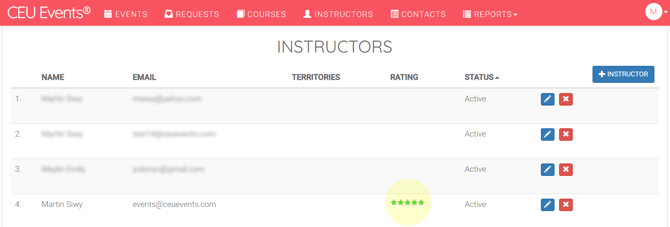
- Click on the Instructors menu.
- Locate the instructor whose reviews you want to view and click on their star rating.
- A new page opens displaying each individual rating for that instructor.
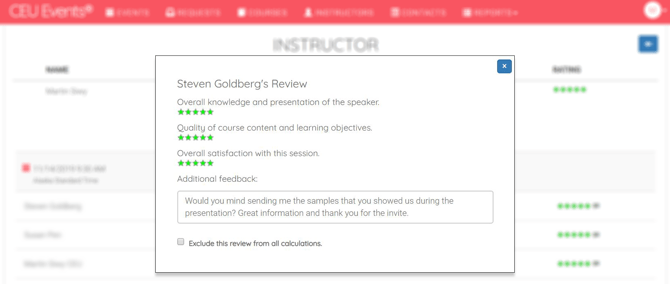
- To see the full details of a specific review, click on that rating — a pop-up window opens with the complete information.
How to view course reviews
- Click on the Courses menu.
- Locate the course whose reviews you want to view and click on its star rating.
- A new page opens displaying each individual rating for that course.
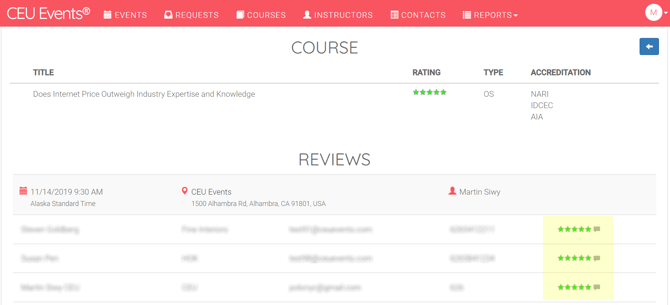
- Click on any rating to open a pop-up with the complete details for that review.
How to view event reviews
- Click on the Events menu.
- Locate the event whose reviews you want to view and click on it.
- The event detail page opens with all reviews provided by attendees.
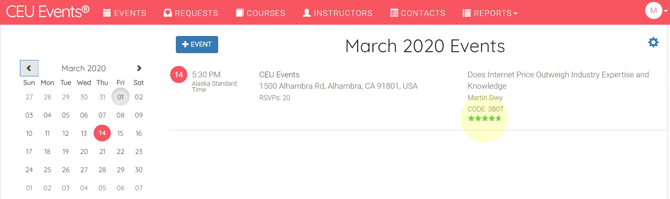
- Click on any rating to open a pop-up with the complete details for that review.
Excluding feedback from rating calculations
You have the option to exclude any review from contributing to the overall ratings for the instructor, course, or event. Excluded reviews remain visible to you but no longer affect the calculated rating. You can undo an exclusion at any time, restoring the review's impact on the rating.
⚠️ Use this feature thoughtfully. Reserve exclusions for genuinely inappropriate reviews — such as spam, off-topic content, profanity, or feedback tied to technical issues outside the instructor's control. Excluding negative but valid feedback distorts your ratings and reduces the long-term usefulness of the review system.
Best practices for using attendee reviews
- Review feedback regularly. A monthly review of new feedback keeps you ahead of patterns and lets you address issues while they're still fresh.
- Read written comments, not just star ratings. Star ratings show overall sentiment, but written feedback tells you why — and that's where the actionable insights live.
- Share positive feedback with instructors. Specific praise from attendees is one of the most powerful forms of recognition. Pass it along when you see it.
- Look for patterns. Multiple reviews citing the same issue (audio quality, pacing, outdated examples) are signals to address through coaching or content updates.
- Use feedback to inform course refreshes. Recurring criticism of specific content is a strong indicator that a course is due for an update.
Troubleshooting
If you run into an issue not listed below, contact CEU Events support for assistance.
- An attendee says their updated review isn't being reflected. Ask the attendee to confirm they used their original review URL to submit the update. If they did and the change still isn't showing, have them refresh the page or contact CEU Events support.