👥 This article applies to Providers and Instructors.
The Events menu offers two ways to look at your events: List View and Calendar View. Each view is more useful for different tasks, and switching between them is a single click. This article walks you through how to toggle, plus when each view tends to be most useful.
Before you begin
- This applies to anyone with access to the Events menu — Providers managing their full program and Instructors managing their scheduled events.
- The view setting is per-session; your view preference may reset when you sign back in.
How to switch your Events view
- Sign in to www.ceuevents.com.
- Click the Events menu.
- Click the Settings icon (gear) in the upper right of the Events page.
- The view toggles between List View and Calendar View. The tooltip shows the view you'll switch to when you click — so if you see "Calendar view," you're currently in List View, and vice versa.
List View
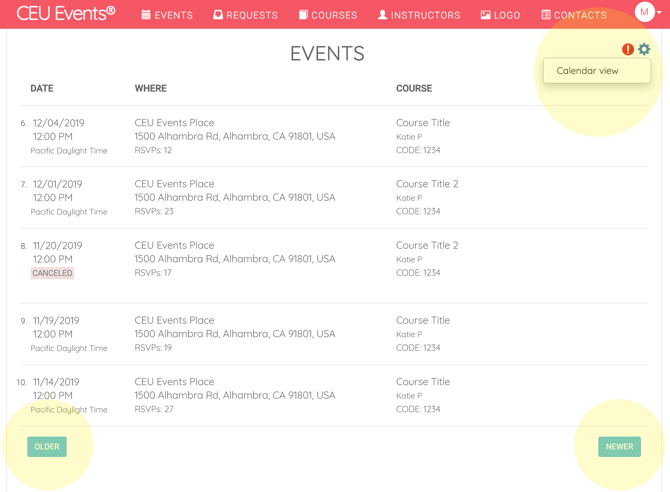
List View displays your events as a chronological list. Each entry shows:
- Date and time (with time zone)
- Where — the Place/Location and address, plus RSVP count
- Course — course title, instructor, and Event Code
List View also includes Older and Newer pagination buttons so you can scroll through your event history or upcoming schedule. Canceled events are clearly labeled.
Calendar View
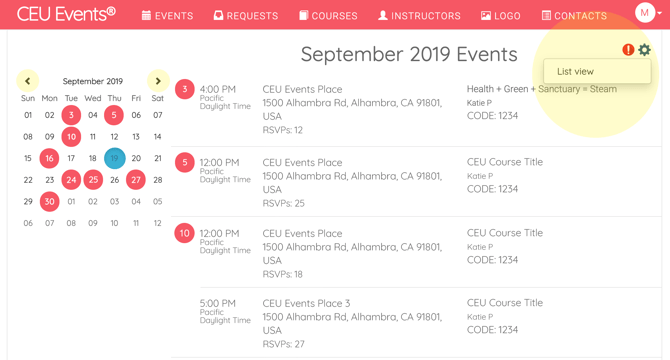
Calendar View displays a monthly calendar with event dates highlighted, alongside a chronological list of events for the selected month. Each event shows the same details — time, location, course, and Event Code.
Calendar View is the default view for the current month but you can navigate to earlier or later months using the calendar arrows.
When to use each view
- Use List View when you want to scroll through many events in sequence, review your full event history, or look up a specific event by date or course.
- Use Calendar View when you want to see your events distributed across a month, spot scheduling gaps or conflicts, or plan around specific dates.
💡 Tip: If you're planning new events, Calendar View makes it easier to spot open dates. If you're reviewing what's already on the books, List View tends to be faster for scanning.