👤 This article is for providers. Looking for the instructor version? See Event Totals (Instructors).
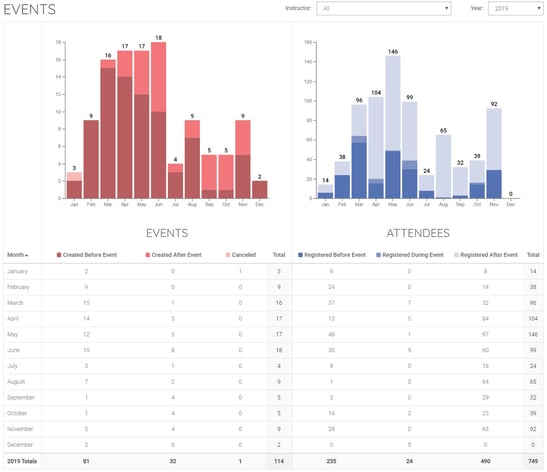
The Event Totals report shows you the volume of in-person and webinar events created in your account, along with the number of attendees who registered. The report breaks data down by month and reveals whether events are being created on schedule, whether attendees are pre-registering, and how often events get cancelled. Use it to monitor activity, coach instructors on best practices, and identify trends in your CEU program.
Before you begin
- You must be logged in with a provider account.
- For the report to display meaningful data, your account should have at least one event in the selected time period.
- For background on accessing reports and common filters, see Reports Overview (Providers).
How do you view the Event Totals report?
- Sign in to www.ceuevents.com using your provider account credentials.
- Click on the Reports menu.
- Select Event Totals.
What the report shows
The report displays a monthly count of events and attendees, with two main groups: Events and Attendees. Each group includes breakdowns that help you spot best-practice patterns and areas for improvement.
Events
- Created Before Event Date — Events created in the system prior to the event taking place. This is the recommended behavior — when events are created in advance, attendees can pre-register and the event runs more smoothly.
- Created After Event Date — Events created in the system after they've already taken place. As a program lead, use this metric to identify instructors who aren't creating their events ahead of time, and coach them on best practices.
- Cancelled — Events that were cancelled. A low count is desirable. Spikes here may signal scheduling conflicts, instructor availability issues, or audience-fit problems worth investigating.
Attendees
- Registered Before Event Date — Attendees who pre-registered before the event took place. A high count indicates the instructor sent out the invitation ahead of time and engaged attendees in advance — a strong best-practice signal.
- Registered During Event Date — Attendees who registered during the event via Event Code or the Attendance Recording Guide.
- Registered After Event Date — Attendees who were manually added by the instructor after the event or via Event Code. This number should be minimized — manual entry takes time and many recognition organizations require attendance to be recorded during the event. All attendance should be recorded before the end of the event.
Filters
This report supports the following filters:
- Type — In-person or webinar events.
- Instructor — A specific instructor.
- Year — A specific calendar year.
What are the best practices for using this report?
- Watch the Created After Event Date count. Persistent activity here is a coaching opportunity — your instructors should be creating events ahead of time.
- Aim to grow Registered Before Event Date. High pre-registration numbers indicate instructors are promoting their events effectively.
- Keep Registered After Event Date low. Reducing manual after-event entry saves instructor time and ensures attendance meets recognition organization requirements.
- Review monthly. Catching trends early lets you address them before they impact end-of-quarter or end-of-year reporting.
💡 Tip: Filter by a specific instructor and compare metrics across the year to identify both top performers worth recognizing and instructors who could benefit from additional support.
Troubleshooting
- The report shows no data. Confirm at least one event matching your filters has taken place in the selected year. Try removing filters to see if data appears, then narrow back down.
- Numbers look off or inconsistent. Try refreshing the page and reapplying filters. If the numbers still don't match what you expect, contact CEU Events support.