🎓 This article is for instructors. Providers can also retrieve Event Codes through the same path if needed.
Every event in CEU Events has a unique Event Code, automatically generated when the event is created. This code is used in three main ways:
- On the CEU Events Paperless Attendance Slide during your event, so attendees can scan the QR code and self-record their attendance.
- In post-event support for attendees who did not register during the event but need to retrieve their certificate and get their applicable credits.
- As a reference identifier when communicating with CEU Events support about a specific event.
This article covers how to retrieve the Event Code from both a web browser and the CEU Events mobile app.
📝 Note: Only providers and instructors can retrieve the Event Code. Attendees receive the code from you — typically displayed on the Paperless Attendance Slide near the end of your presentation, or provided on the Attendance Recording Guide if they reach out after the event.
How to find the Event Code in a web browser
- Sign in to www.ceuevents.com using your provider or instructor credentials.
- Click on the Events menu.
- Locate the event whose code you need. The Event Code is displayed next to the event in the list, or click into the event to see it under the event details.
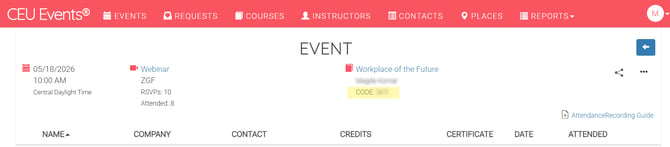
- Take note of the code or copy it for use.
How to find the Event Code in the mobile app
- Open the CEU Events app on your mobile device and sign in.
- Tap the event card for the event you need the code for.
- The Event Code is displayed on the event details screen.
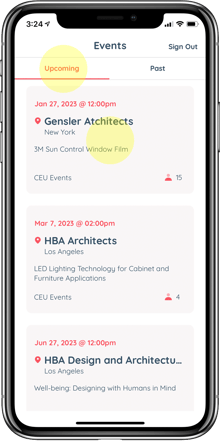
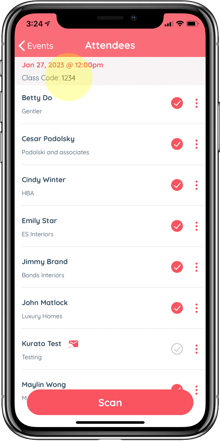
- Take note of the code or copy it for use.
What to do with your Event Code
Once you have the code:
- Update your CEU Events Paperless Attendance Slide with the code for the specific event you're about to present. The slide displays a QR code that directs attendees to www.ceuevents.com/attendance, where they enter the Event Code to confirm attendance and retrieve their certificate.
- Reference the code in support requests. When contacting CEU Events support about a specific event, including the Event Code helps the team find your event quickly.
📝 Note: If an attendee reaches out after the event needing to record their attendance, send them the Attendance Recording Guide for that specific event rather than the Event Code directly. The Guide is a per-event PDF accessible as a hyperlink from your event detail page — it walks attendees through the recording process step by step.
Best practices
- Update your CEU Events Paperless Attendance Slide with the Event Code before your event. Don't rely on pulling it up on-the-fly during your presentation — add the code to your Attendance Slide ahead of time so the QR code points attendees to the right event.
- Double-check the code on your Attendance Slide before presenting. Each event has a different code. Using the wrong code means attendees won't get credit for the right event.
Troubleshooting
- An attendee reports the Event Code is not working. Confirm the code you provided is correct, that the event has already taken place, and that the attendee is entering it at www.ceuevents.com/attendance. If issues continue, contact CEU Events support.