🎓 This article is for instructors.
A Certificate of Completion documents an attendee's participation in your event. Once you mark an attendee as Attended, their certificate becomes available — but how they access it depends on whether they have a CEU Events account. This article explains when certificates become available, how to handle attendees added ad hoc, and how to notify attendees that their certificates are ready, individually or in bulk.
⚠️ Important: Attendees need a CEU Events account to retrieve their certificate. Encouraging attendees to use their own accounts streamlines the process, ensures accurate record-keeping, and enables future support for their certificates and continuing education.
When a certificate becomes available
Certificate availability depends on how the attendee was added to your event:
- Attendees who registered through their own account: Once you mark them as Attended, their certificate is instantly available to download from their attendee account — no further action needed from you.
- Attendees added ad hoc: Their applicable credits will still be reported (as long as their membership/license number was provided), but to receive their certificate, they'll need to sign in or create a CEU Events account so they can be linked to the course and event. The Certificate is ready notification email gives them the proper link to complete these steps.
To mark attendees as Attended in the first place, see Mark Attendees as Attended.
How to notify an individual attendee (web browser)
Once an attendee is marked as Attended, their certificate is ready. To send them a system email letting them know it's available:
- Sign in to www.ceuevents.com using your instructor account credentials.
- Click on the Events menu.
- Locate the event and click on it.
- Locate the attendee in your records and confirm the checkbox under the Attended column is selected (it turns green when complete).
- Click the Menu (⋯) button on the attendee's record.
- Select Send from the menu options.
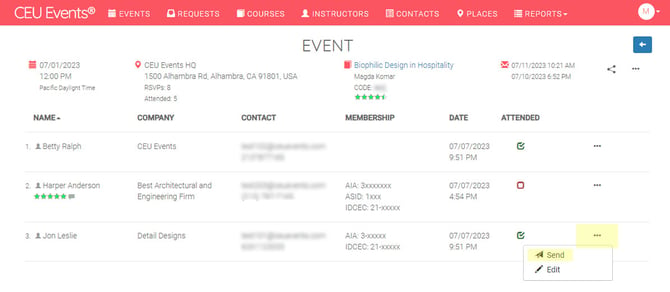
A system email is sent to the attendee, letting them know their certificate is available for download.
How to send bulk certificate notifications (web browser)
To notify all relevant attendees at once with a single message:
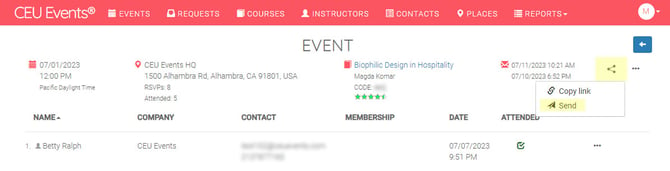
- From the event, click the Share button.
- In the pop-up window, click Send.
- Under Make a selection, choose Certificate is ready.
- The email content is automatically generated, including the link attendees need to access their certificates.
- (Optional) Select Exclude previous recipients to skip attendees who already received this notification for the same event.
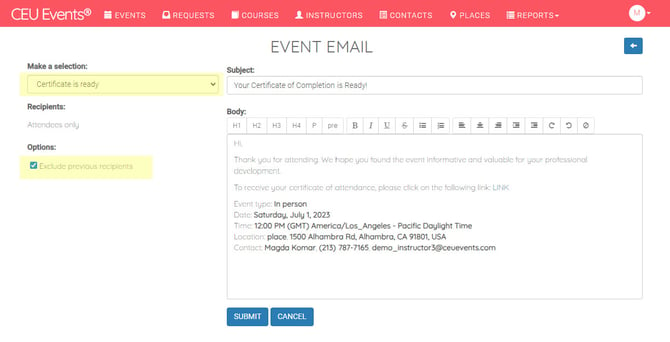
- Review the email, then click Submit.
The email is added to the sending queue.
📝 Note: Emails are processed and sent at three intervals each hour: :00, :20, and :40. After you submit, your notifications will go out at the next available interval.
How do I issue a certificate from the mobile app?
- Open the CEU Events app.
- Locate the event and tap on the event card.
- Locate the attendee and tap on their record.
- Tap Issue Certificate.
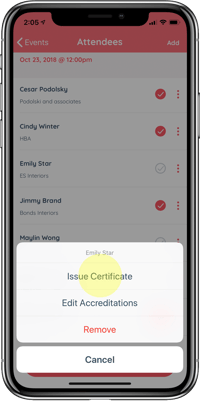
- The attendee is notified about their Certificate of Completion.
Best practices for issuing certificates
- Certificates are generated systematically. Each Certificate of Completion is built from four linked elements — the provider, instructor, course, and event — ensuring a precise, auditable record for every certificate and credit issued.
- Mark attendees as Attended promptly. Certificates aren't available until attendees are marked. The sooner you mark them, the sooner their certificates are ready.
- Use bulk notifications for larger events. Rather than notifying attendees one by one, the bulk Certificate is ready email reaches everyone at once.
- Emphasize the account requirement to ad hoc attendees. Attendees added ad hoc won't be able to download their certificate until they sign in or create an account. The notification email guides them through this — encourage them to follow it promptly.
- Use "Exclude previous recipients" to avoid duplicate emails. When sending follow-up notifications, this option keeps you from re-emailing attendees who were already notified.
Troubleshooting
- An attendee says they can't find their certificate. Confirm they're marked as Attended for the event and signed in to the correct CEU Events account. For ad hoc attendees, confirm they've created or signed in to an account so they can be linked to the event.
- A bulk notification didn't reach an attendee. Emails send at :00, :20, and :40 each hour — confirm enough time has passed. Ask the attendee to check their spam folder and confirm the email on file in their account is correct. If issues persist, contact CEU Events support.
- An ad hoc attendee got their credit reported but no certificate. This is expected — credits report automatically (if their membership/license was provided), but the certificate requires an account. Send them the Certificate is ready notification so they get the link to sign in or create an account and access it.
- Still having trouble? Contact CEU Events support and we'll help.