🎓 This article is for instructors. Looking for the provider version? See Managing Requests (Providers).
As an instructor, you manage incoming CEU event requests from the Requests menu in your account. The Request CEU Event feature lets trade professionals reach out directly to instructors to request a local presenter for an upcoming event at their firm. If your provider has assigned you territories, you will receive requests in those areas directly to your account. This article walks you through where to find incoming requests, what actions you can take, and what to do when you cannot take on a request.
Before you begin
- You must be logged in with an instructor account.
- Your provider must have assigned territories to your account for requests to be routed to you. If you're not receiving requests and you'd expect to be, reach out to your provider to confirm your territory setup.
Where to find incoming requests
- Sign in to www.ceuevents.com using your instructor account credentials.
- Click on the Requests menu.
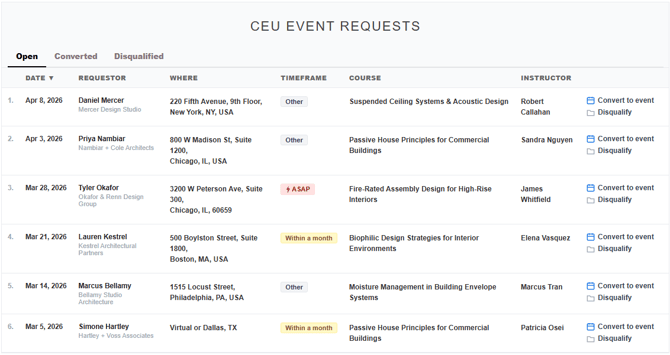
- Requests are organized into three tabs:
- Open — Active requests that haven't been actioned yet.
- Converted — Requests you've turned into scheduled events.
- Disqualified — Requests that have been removed from the active list.
What actions can I take on a request?
On each open request, you can take one of two actions:
- Convert to Event — Turn the request into a scheduled event. Once clicked, the request moves to the Converted tab and the event appears on your calendar.
- Disqualify — Remove the request from the Open list. The request moves to the Disqualified tab. Use this when a request isn't a fit, doesn't meet your criteria, or was requested to be withdrawn by the requester.
What should I do if I cannot take a request?
If you receive a request but can't take it for any reason — maternity leave, vacation, illness, schedule conflicts, or just being overbooked — your provider can reassign the request to another instructor on the team. Reach out to your provider as soon as you know you can't take it, so they can route it to someone available without losing time on the requester's end.
What happens after I action a request?
What happens after you action a request depends on what you chose:
- Converted — The request becomes a scheduled event on your calendar. You can manage the event from the Events menu like any other scheduled event.
- Disqualified — The request is removed from the Open tab and archived under Disqualified. The requester is not automatically notified — if you want to communicate the outcome, reach out to them directly.
Troubleshooting
- No requests are coming in. Confirm with your provider that territories have been assigned to your account. Without territory assignments, requests can't be routed to you.
- You don't see a Reassign button. Reassignment is a provider-only action. As an instructor, your options are Convert to Event or Disqualify. To reassign a request, reach out to your provider.
- You can't find a request you remember seeing. Check the Converted and Disqualified tabs in addition to Open — the request may have already been actioned.
- You disqualified a request by mistake. If you're unable to recover it from the Disqualified tab, reach out to your provider, or contact CEU Events support.