👤 This article is for providers. Looking for the instructor version? See Managing Requests (Instructors).
The Request CEU Event feature lets trade professionals reach out to your team to request a local presenter for an upcoming event at their firm. As a provider, you control how those requests are routed. This article walks you through how to set up request routing, where to find incoming requests, and how to convert, reassign, or disqualify them.
Before you begin
- You must be logged in with a provider account that has permission to manage requests.
- At least one instructor must be added to your account. See Add an Instructor.
- Territories must be configured before any requests can be routed. See Manage Instructor Territories.
How requests reach your account
The Request CEU Event feature is built around territory assignments. Before any requests can come in, territories must be assigned to either your instructors or your provider account. You have two strategies for setting this up:
1. Hands-Off Approach
Assign territories to all of your instructors. Requests go directly to the instructor who covers the requester's area, and you retain visibility to monitor activity. This approach typically speeds up event conversion because instructors can reach out to requesters directly without waiting for you to assign.
2. Centralized Approach
Don't assign territories to individual instructors. Instead, assign all territories to your provider account on the Instructors list. Every incoming request comes to you, and you reassign each one to the appropriate instructor on a case-by-case basis. This gives you full oversight of every request before it reaches your team.
Both strategies are commonly used by our providers — the right choice depends on how much oversight you want to maintain.
Where to find incoming requests
- Sign in to www.ceuevents.com using your provider account credentials.
- Click on the Requests menu.
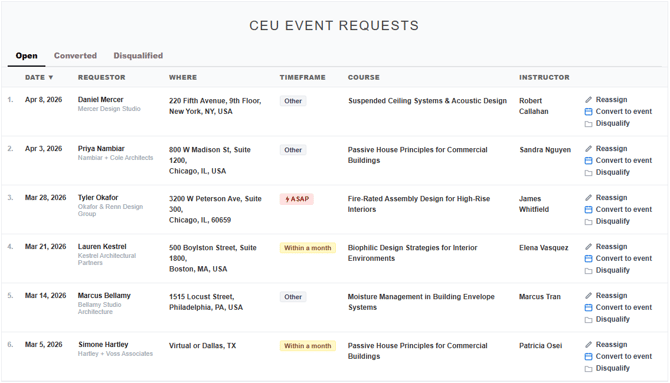
- Requests are organized into three tabs:
- Open — Active requests that haven't been acted on yet — these are requests awaiting conversion, reassignment, or disqualification.
- Converted — Requests that have been turned into scheduled events.
- Disqualified — Requests that have been removed from the active list.
Actions available on a request
On each open request, you can take one of three actions:
- Convert to Event — Turn the request into a scheduled event. Once clicked, you'll be prompted to fill in event details before the request moves to the Converted tab.
- Reassign — Assign the request to a different instructor on your team. Especially useful when an instructor is out of the office, on vacation, or otherwise unavailable. See below for details.
- Disqualify — Remove the request from the Open list. It moves to the Disqualified tab. Useful when a request isn't a fit or doesn't meet your criteria.
How to reassign a request to another instructor
- From the Requests menu, locate the request on the Open tab.
- Click the Reassign button on that request.
- Select the new instructor from the list.
- Confirm the reassignment.
The newly assigned instructor will receive an email notification letting them know the request has been routed to them.
💡 Tip: Reassignment is the right tool for life events — maternity leave, vacations, illness, or unexpected scheduling conflicts. No need to disqualify and start over; just reassign and the new instructor takes over from where things were left.
📝 Note: Only instructors with assigned territories appear on your public Instructor Profile Page. If you've added an instructor but they're not showing up where you'd expect, check their territory assignments first.
What happens next
What happens after a request is actioned depends on which action you took:
- Converted — The request becomes a scheduled event on your calendar. The instructor associated with the event will see it in their account. You can manage the new event from the Events menu like any other scheduled event.
- Reassigned — The newly assigned instructor receives an email notification and can see the request in their own Requests menu. The previously assigned instructor will no longer see the request in their list.
- Disqualified — The request is removed from the Open tab and archived under Disqualified. The requester is not automatically notified — if you want to communicate the outcome, reach out to them directly.
Troubleshooting
- No requests are coming in. Confirm that territories have been assigned — either to individual instructors (Hands-Off Approach) or to your provider account (Centralized Approach). Without territories assigned anywhere, the Request CEU Event feature has nothing to route. See Manage Instructor Territories.
- An instructor isn't appearing in the Reassign dropdown. Confirm the instructor's status is Active. Pending or inactive instructors can't receive reassigned requests.
- You can't find a request you remember seeing. Check the Converted and Disqualified tabs in addition to Open — the request may have already been actioned.
- You disqualified a request by mistake. If you're unable to recover it from the Disqualified tab, contact CEU Events support. Note that recovery may not be possible in all cases.