🎓 This article is for instructors.
The Public event option lets you broaden the reach of your event. When you mark an event as public, it appears in places where prospective attendees beyond your direct invitation list can discover and register for it. This article explains where public events appear, how to enable the option, and when to use it.
Where public events appear
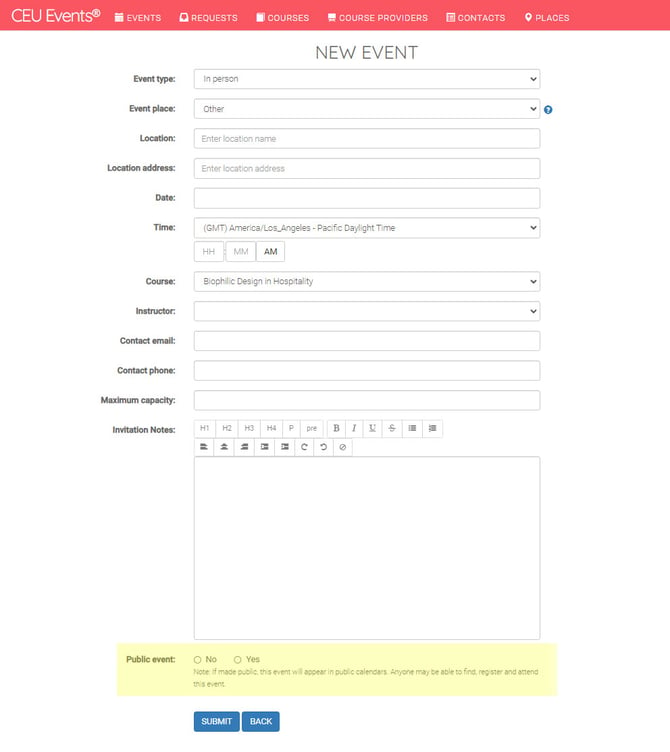
When you set the Public event option to Yes, your event is automatically:
- Posted on the CEU Events homepage under the Upcoming CEU Events section.
- Displayed on the profile pages of any organization where the course has been approved or recognized.
This significantly broadens who can find your event — anyone visiting the homepage or browsing relevant organization pages will see it.
⚠️ Important: A public event is visible to anyone who can find it. People you didn't personally invite may be able to register and attend. Consider this carefully before making an event public, especially if you're presenting to a specific audience (corporate, member-only, or invitation-required events).
How to make your event public
You can set the Public event option when creating a new event or by editing an existing one.
When creating a new event
- Sign in to www.ceuevents.com using your instructor account credentials.
- Click on the Events menu and create a new event. See Schedule a New Event (Instructors) for the full event creation workflow.
- On the New Event form, scroll to the Public event field near the bottom.
- Select Yes to make the event public.
- Complete the rest of the event details and click Submit.
When editing an existing event
- Sign in to www.ceuevents.com using your instructor account credentials.
- Click on the Events menu and open the event you want to update.
- Edit the event and change the Public event field to Yes or No as needed. See Edit an Event (Instructors) for the full edit workflow.
- Click Submit to save your changes.
When to use the Public event option
Public events are well-suited for:
- Promotional or showcase events designed to demonstrate your courses to new audiences.
- Industry-wide webinars open to a broad practitioner audience.
- Events where you want to maximize registrations through CEU Events discovery channels.
When NOT to use the Public event option
Keep your event private (Public event set to No) when:
- The event is for a specific organization, company, or invited group.
- Attendance is limited to members of a particular association.
- The event has a controlled or restricted audience (corporate training, internal staff development, etc.).
- You want to manage registrations only through direct invitations.
Best practices
- Confirm event details before going public. Once an event is visible publicly, you want the date, time, location, and course information accurate. Edits after publishing can confuse early registrants.
- Use the Maximum capacity field thoughtfully. A public event can attract more registrations than expected — set a maximum capacity that matches what your venue or webinar platform can support.
- Combine with your invitation list. Even when your event is public, you can still share the event invitation page with specific contacts. The Public event option only adds discovery — it doesn't replace your direct outreach. See Retrieve an Event Invitation Page URL.
- Switch to private if needed. If you decide later the event should be restricted, you can edit it and change Public event back to No. Existing registrations remain.
Troubleshooting
- Your event isn't appearing on the homepage or organization profile pages. Confirm the Public event field is set to Yes in the event details. There may be a short delay before the event is indexed and displayed. If the issue persists, contact CEU Events support.
- You set Public event to Yes but want to make it private. Edit the event and change the field to No. The event will be removed from public listings. See Edit an Event (Instructors).
- You're getting registrations from people you don't know. This is expected for public events. If you want to limit registrations, switch the event to private and continue managing registrations through direct invitations.
- Still having trouble? Contact CEU Events support and we'll help.