🧑🎓 This article is for attendees.
The Event Code is your key to recording attendance at a CEU event. Each event has a unique code, and entering it through CEU Events confirms your attendance, makes your certificate available, and triggers credit reporting to your applicable organizations. This article walks you through how to record your attendance with the Event Code, what to do if you pre-registered, and where to find the Event Code at an event.
📝 Note: The Event Code is case-sensitive — type it exactly as shown by the presenter, paying close attention to capitalization.
Pre-register when you can — it makes everything smoother
When you receive an event invitation, pre-registering through the link is the smoothest path for everyone:
- It helps the instructor plan. Knowing the attendee count helps them prepare materials, manage food orders for lunch-and-learns, and set up the venue or webinar appropriately.
- It speeds up your attendance recording. Pre-registered attendees can use the self-record option at the event, which is faster than going through the full registration flow on the spot.
- Your certificate and credit reporting happen faster because your account is already linked to the event.
Where to find the Event Code
Presenters share the Event Code through one of two channels:
- The Paperless Attendance Slide — Displayed at the end of the presentation. It includes a QR code you can scan with your phone, plus the Event Code you can enter manually.
- The Attendance Recording Guide — A handout (printed PDF for in-person events) the presenter shares during, or after the event. It contains the Event Code and step-by-step instructions for recording attendance.
If you missed the Event Code at the event, ask the presenter directly — only they can provide it.
How to record your attendance (web browser)
- Visit www.ceuevents.com/attendance.
- Enter the Event Code exactly as shown (case-sensitive).
- Click Continue.
- Follow the on-screen instructions to sign in to your account, or create one if you don't have one yet.
- Confirm your attendance.
You'll see a Events menu where you can immediately download your Certificate of Completion. See Retrieve Your Certificate of Completion.
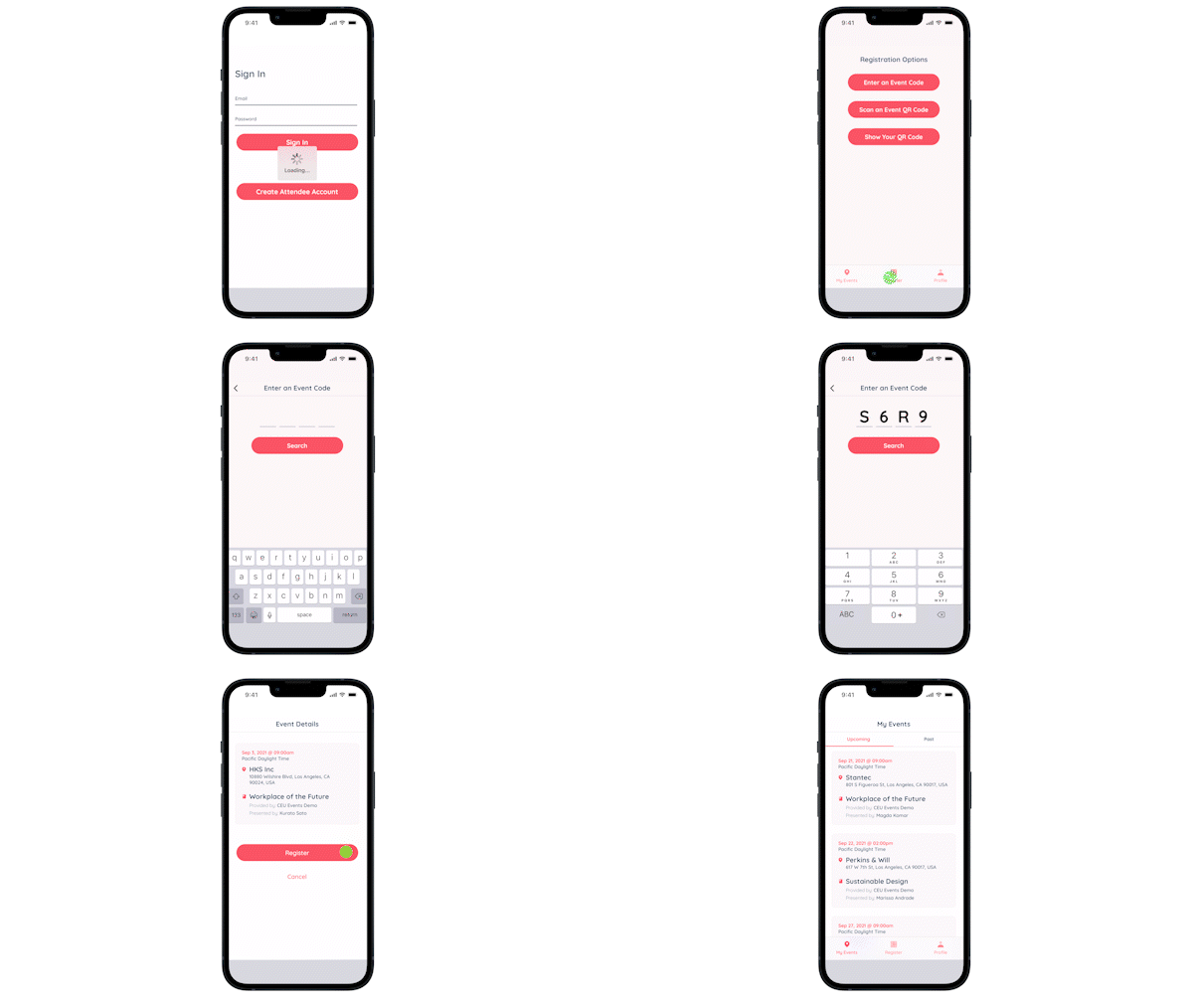
How to record your attendance (mobile app)
- Open the CEU Events Mobile App. If you don't have it, download it at www.ceuevents.com/app.
- Sign in with your attendee account.
- Tap the option to enter an Event Code.
- Enter the Event Code (case-sensitive) and follow the on-screen instructions to confirm your attendance.
Self-record if you pre-registered
If you pre-registered for the event, the workflow is even faster — you don't need to create an account or re-enter any of your information. Just:
- Open the Paperless Attendance Slide (scan the QR code) or go to www.ceuevents.com/attendance.
- Sign in with your existing account.
- Enter the Event Code and confirm.
Your certificate becomes available instantly, and credit reporting begins automatically.
Best practices
- Pre-register whenever possible. It's the smoothest experience for both you and your instructor — and saves you time at the event itself.
- Record your attendance before leaving the event. It's much easier in the moment than chasing it down later.
- Keep your account credentials up to date. Membership and license numbers in your profile drive accurate credit reporting. See Add or Update Your Memberships and License Numbers.
- Save the Event Code in case you need it later. If you have to step away mid-event or run into technical issues, having the Event Code lets you record attendance later.
Troubleshooting
- The Event Code isn't being accepted. Confirm you typed it exactly as shown — the code is case-sensitive (lowercase matters). Try again with careful attention to capitalization.
- You don't have the Event Code. Reach out to the presenter directly. Only the presenter can provide the Event Code for their event.
- You signed in but your certificate isn't available. Confirm you completed the full attendance recording step — you should see the event you registered for under your Events menu. If you stopped before then, your attendance may not be recorded yet. Go back to www.ceuevents.com/attendance and try again.
- Still having trouble? Contact CEU Events support and we'll help.