🧑🎓 This article is for Attendees.
A CEU Events Certificate of Completion is automatically generated for you — never manually created — and is available in your CEU Events account as soon as your in-person event is marked as "Attended," or shortly after you complete the quiz for an on-demand course (see the on-demand completion confirmation screen for the current processing time). These certificates are designed for accuracy, consistency, and compliance with continuing education requirements across professional organizations, and draw on structured data linked to the course, provider, instructor, and event.
How certificates are generated
Certificates are never manually created. They're built automatically from a combination of:
- Provider information — name, contact, and provider status
- Course details — title, duration, and designations (such as HSW or ADA)
- Course approvals and recognitions — AIA, IDCEC, and other recognized bodies
- Instructor details — name, contact, and bio of the presenter
- Event type — whether the course was delivered live or on-demand
- Course length — the approved instructional time in hours
All of this data is linked within the CEU Events platform and assembled into your certificate when you click the Download button in your dashboard.
What information appears on the first page of a certificate?
Every certificate's first page follows the same structure:
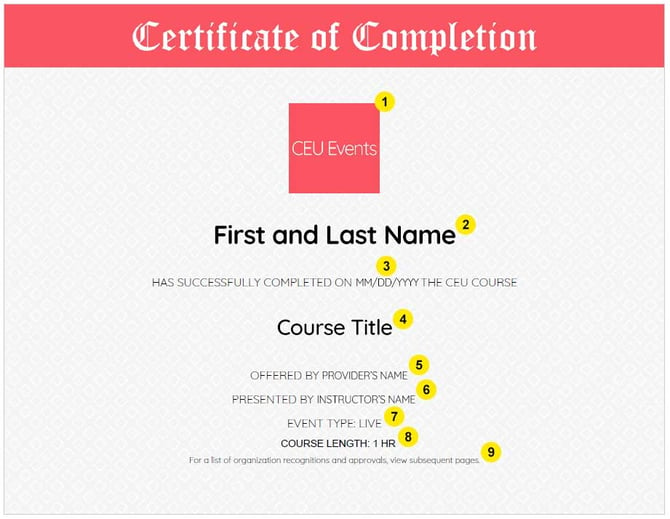
- CEU Events logo — included so any organization receiving the certificate knows how to contact us for verification or additional information.
- Attendee's name — linked to your CEU Events account. If you need a name change, we can refresh your event data so previously earned certificates reflect the updated name and can be re-downloaded.
- Course completion date.
- Course title.
- Provider name.
- Instructor name.
- Event type — Live or On-Demand.
- Course length — approved instructional hours.
- Reference to subsequent pages, where applicable. Additional pages contain detailed information about course approvals and recognitions across specific organizations.
What information appears on the subsequent pages of a certificate?
Where the course is approved or recognized by professional organizations, subsequent pages provide org-specific details:
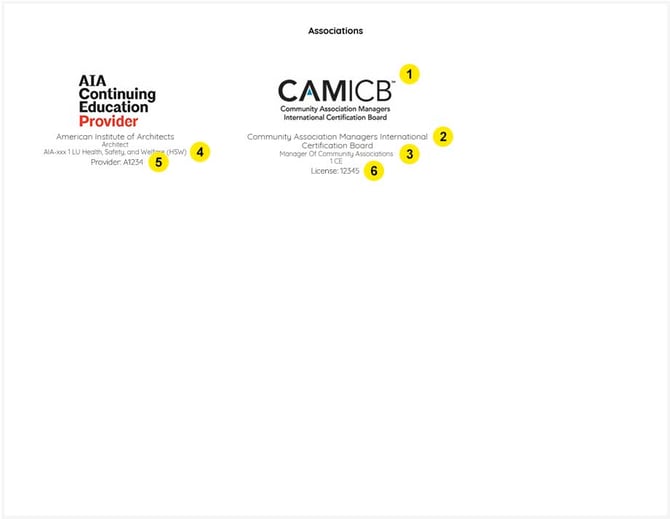
- Organization logo or state/province outline for quick identification.
- The name of the organization.
- Profession — course approvals and requirements vary across different professional roles, so this clarifies which profession the credit applies to.
- Course code, credit value, and topic category where required by the organization (such as a CAB course code or an AIA HSW designation).
- Provider number, if required by the organization (such as the AIA provider number).
- Attendee license or membership number, if required by the organization (such as your license number or AIBC number).
The exact contents of these pages depend on which organizations have approved or recognized the course — different orgs require different information, so your certificate's subsequent pages are tailored to your specific event's approvals.
When is your certificate available?
Your certificate becomes available immediately when either of the following happens:
- The presenter marks you as "Attended" in the event dashboard, or
- You confirm your attendance using the unique Event Code provided by the presenter. See Record Your Attendance with the Event Code.
Once available:
- ✅ The certificate can be downloaded instantly from your CEU Events account. See Retrieve Your Certificate of Completion.
- ✅ If you entered a valid membership number on your profile (such as your AIA number) and the organization supports automatic reporting, your credit is reported to the appropriate organization — typically by the end of the next business day.
Important notes
📝 Note: No manual edits are made — or supported — on certificates. Certificates are dynamically generated based on live data in the system, which is what ensures accuracy and regulatory compliance. If a certificate needs to reflect different information (for example, a corrected name), the underlying profile or event data must be updated first, and the certificate is regenerated after.
Best practices
- Keep your profile information current. Your name on the certificate comes directly from your CEU Events profile. If you change your name (e.g., after marriage or another life event), update your profile first — then contact CEU Events support to have your previously earned certificates refreshed.
- Download your certificates promptly after each event. While they're always available in your account, downloading them right away gives you an offline backup and simplifies submission to organizations during reporting periods.
- Verify the content before submitting. Quickly check that your name, organization details, and credit information are correct before submitting to any organization that requires the certificate.
- Understand which organizations apply to your event. Not every event applies to every organization. The subsequent pages of your certificate show exactly which orgs recognized the course and how much credit applies to each.
Troubleshooting
- Your name on the certificate is incorrect or outdated. Update your profile information in your CEU Events account first. Then contact CEU Events support and we'll refresh your event data so previously earned certificates reflect the updated name. See Update Your Profile Information.
- Your certificate isn't available yet. This usually means the presenter hasn't marked you as "Attended" yet, or you haven't yet recorded attendance with your Event Code. If you have the Event Code, follow Record Your Attendance with the Event Code. If neither applies, contact the presenter to confirm your attendance status.
- An organization you expected to see isn't on the subsequent pages. Subsequent pages only include organizations that approved or recognized the specific course you attended. If a course was not approved by an organization, it will not appear. This is by design. To see which organizations a course is approved by, check the course details before registering.
- You need a manual edit to your certificate. Manual edits aren't supported. Certificates are dynamically generated from live data, so any change has to come from updating the underlying profile or event information. If the issue is something we can correct via that path, contact CEU Events support.
- Your credit isn't showing up in an organization's transcript. Confirm your membership number is correct in your CEU Events profile and that the course is approved by that organization. If both are correct and credits still aren't reported, contact CEU Events support. For organization-specific guidance, see the related articles below.
- Still have questions? Contact CEU Events support and we'll help.