👤 This article is for providers. Only provider accounts can access this report
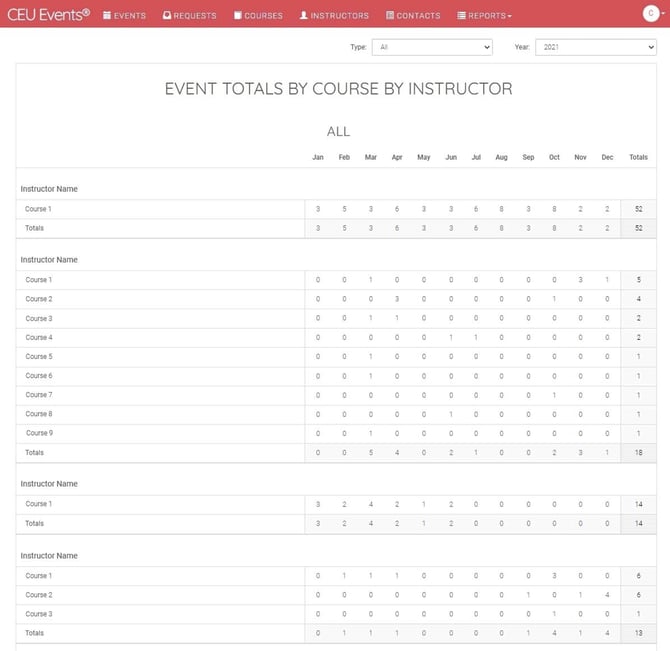
The Event Totals by Course by Instructor report combines instructor and course views into a single report. It shows event and attendee totals grouped by instructor, with course-level detail and a month-by-month breakdown. Use it to monitor instructor performance against course-specific KPIs, identify which courses each instructor runs most effectively, and ensure required events are being completed on schedule. This is one of the few reports in CEU Events that supports CSV export, making it especially useful for ongoing KPI tracking and offline analysis.
Before you begin
- You must be logged in with a provider account.
- For the report to display meaningful data, your account should have at least one event in the selected time period.
- For background on accessing reports and common filters, see Reports Overview (Providers).
How do I view the Event Totals by Course by Instructor report?
- Sign in to www.ceuevents.com using your provider account credentials.
- Click on the Reports menu.
- Select Event Totals by Course by Instructor.
What the report shows
The report is grouped by instructor, with each instructor's courses listed beneath their name. For each instructor-and-course combination, you'll see:
Events
Monthly and total count of events conducted, broken down by month.
Attendees
Monthly and total count of attendees, broken down by month.
This combined view is useful for spotting which courses each instructor runs most often, which courses bring in the most attendees per instructor, and where there are imbalances worth addressing.
Filters
This report supports the following filters:
- Type — In-person or webinar events.
- Year — A specific calendar year.
📝 Note: This report does not include Instructor or Course filters, since the data is already grouped by both. To narrow your focus, use the export feature and filter in your spreadsheet application.
Exporting the report
Unlike most other reports, this report can be downloaded as a CSV file for offline analysis. Use the export when you want to:
- Track KPIs over time outside the platform.
- Share data with team members who don't have provider access.
- Build custom pivot tables, charts, or dashboards in Excel, Google Sheets, or another tool.
- Apply any filters you want (Type, Year) before exporting.
- Click the Export CSV button on the report page.
- Open the downloaded file in your spreadsheet application to begin analysis.
How to export the report
Best practices for using this report
- Set KPIs by course, instructor, and month. This report is purpose-built for tracking targets like "minimum 4 events per instructor per quarter for [course]" or "X attendees per course per month." Setting and tracking these KPIs gives you a clear measure of program engagement.
- Coach by course. An instructor may excel at one course but underperform on another. Use this view to identify their strengths and route course requests accordingly.
- Use the export for trends over time. With CSV export, you can build month-over-month and year-over-year trend lines that aren't possible inside the report view alone.
- Combine with other reports. Pair this with Event Totals by Instructor for overall instructor performance and Event Totals by Course (Providers) for course-level totals without the instructor slice.
💡 Tip: Export this report monthly into the same spreadsheet to build a year-long view of each instructor-course combination — ideal for quarterly business reviews and end-of-year planning.
Troubleshooting
- An instructor you'd expect to see isn't listed. Confirm the instructor's status is Active and that they have at least one event in the selected time period.
- A course isn't appearing under an instructor. Confirm the instructor has access to that course and that at least one event has been scheduled for it. See Manage Instructor Course Access.